Download and Installation
This section provides everything you need to download and install the CosmicSDK on your development machine.
Platform Support
CosmicSDK is currently available for the following platforms:
Windows (x64 and x86 architectures, supporting both MSVC and MinGW compilers)
macOS (both Intel and Apple Silicon (ARM) architectures)
Linux (both x64 and ARM64 architectures)
Download Links
You can download the latest precompiled SDK binaries and development headers using the links below:
Windows
We provide two download options for Windows users: a standard .exe installer, and a .rename version to help bypass certain download restrictions.
x64 MinGW (.rename) – Same installer file but with a `.rename` extension to prevent some systems from blocking direct `.exe` downloads. You will need to rename the file back to `.exe` before running it.
Each installer will install the following components:
Binary .dll files for Debug and Release profiles
C/C++ headers
Documentation files
Example projects
macOS
The SDK is distributed as architecture-specific .zip archives:
Each archive contains:
Dynamic libraries (.dylib)
C/C++ headers
Documentation files
Example projects
After extracting the .zip file, no further installation is required. You can link directly to the provided libraries in your Xcode or command-line build environments.
Linux
The SDK is distributed for Linux as architecture-specific compressed archives.
Each archive contains:
Dynamic libraries (.so)
Static libraries (.a)
C/C++ headers
Documentation files
Example projects
Linux setup helper script (scripts/install_udev_rules.sh)
Linux udev rule file (udev/65-binho-hid.rules)
After extracting the archive, no installer is required.
Installation Instructions
Windows
To install the CosmicSDK on Windows:
Download the Installer
Use one of the links provided above:
.exe file (recommended)
.rename file (rename it to .exe before running)
Run the Installer
Double-click the installer to launch the setup wizard.
Choose Installation Directory
By default, the SDK will be installed to:
C:\CosmicSDK
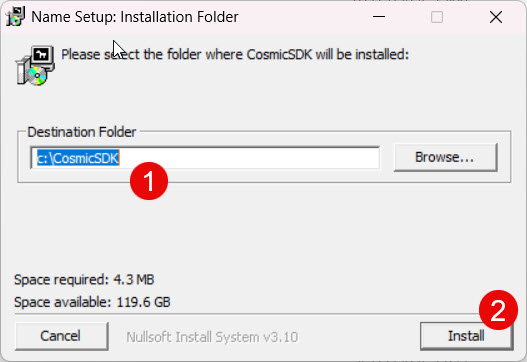
If you’d like to install it to a different directory (e.g., C:\cosmicsdk110), type the full path in the Destination Folder field or use the Browse… button.
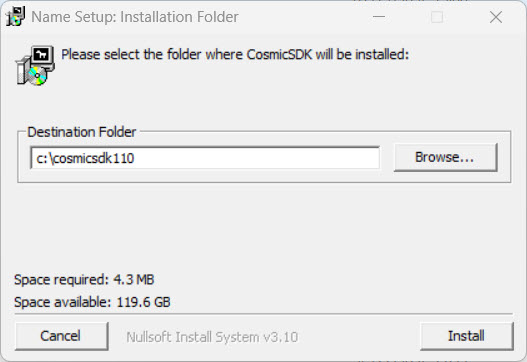
Note
If the specified directory does not exist, the installer will automatically create it.
Complete Installation
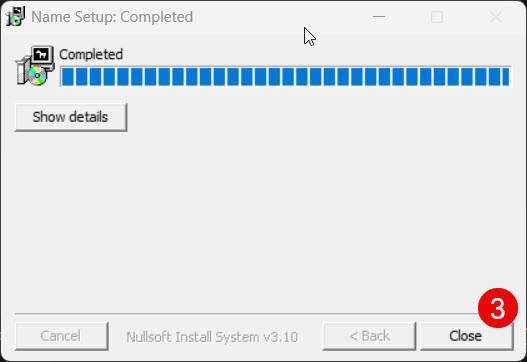
Click Install to begin. Once the progress bar is complete, click Close to exit the installer.
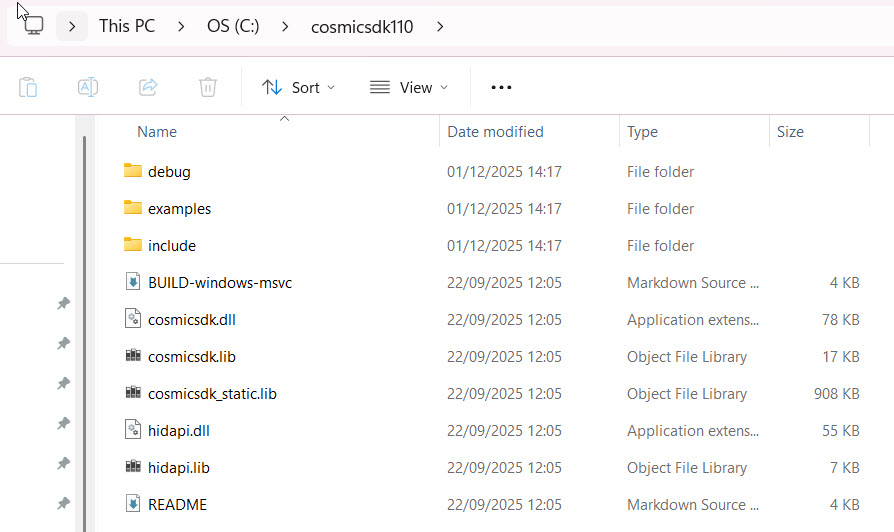
After installation, you can navigate to the installation directory to access the debug, examples, and include folders, as well as the documentation files and release .dll files.
macOS
To install the CosmicSDK on macOS:
Download the Archive
Choose the correct .zip file for your system architecture:
Intel-based Macs: cosmic_sdk-mac-intel-binaries.zip
Apple Silicon (ARM) Macs: cosmic_sdk-mac-arm-binaries.zip
Extract the Archive
After downloading, double-click the .zip file to extract its contents.
You will see a folder named something like:
cosmic_sdk-mac-{arch}-binaries/
Inside this folder, you’ll find:
include/ – C/C++ header files
lib/ – Precompiled .dylib binaries
examples/ – Sample projects to help you get started
README.txt and LICENSE.txt
Use the SDK
There is no installation step required. You can begin using the SDK immediately. To do so, follow the steps described in Examples.
Tip
If you’re using a macOS security feature like Gatekeeper, you may need to allow execution of third-party libraries in System Settings > Security & Privacy.
Linux
To install the CosmicSDK on Linux:
Download the Linux archive
Use one of the Linux links listed above.
Extract the archive
tar -xzf <linux-package-file>.tar.gz
cd <cosmicsdk-linux-package-dir>
Use the extracted artifacts directly
CosmicSDK does not require a system-wide installer on Linux. Use:
<cosmicsdk-linux-package-dir>/includefor headers<cosmicsdk-linux-package-dir>/libfor shared/static libraries<cosmicsdk-linux-package-dir>/examplesfor sample projects
(Recommended) Install udev rules for non-root USB access
chmod +x ./scripts/install_udev_rules.sh
sudo ./scripts/install_udev_rules.sh
Unplug and replug your Binho device after installing rules.
Install build dependencies
Building the examples requires
pkg-configand thelibudev/libusb-1.0development packages, which are often missing on fresh Linux installs:sudo apt-get install -y pkg-config libudev-dev libusb-1.0-0-dev
See Prerequisites for the equivalent packages on Fedora/RHEL and other distributions.
Validate with an example
cd examples/blocking_api/system/cpp
cmake -B build -DLIBRARY_PATH="<cosmicsdk-linux-package-dir>/lib" -DINCLUDE_PATH="<cosmicsdk-linux-package-dir>/include"
cmake --build build
LD_LIBRARY_PATH="<cosmicsdk-linux-package-dir>/lib:$LD_LIBRARY_PATH" ./build/example_cpp_dynamic